
If you want to build a website with CMS that's fast, secure, and genuinely easy to manage, the best approach today is to pair a static site generator with a Git-based workflow. This modern stack ditches the slow, database-heavy systems of the past for something far simpler and more powerful for everyone involved.
Why Modern CMS Workflows Are Better

Anyone who has wrestled with a clunky, traditional CMS knows the pain. The old way—a monolithic backend, a complex database, and constant server babysitting—creates bottlenecks that slow down your website and your team. Every single time someone visits a page, the server has to grind away, querying the database and piecing the page together on the fly. That process adds precious seconds to your load times.
This is exactly where the modern static approach flips the script. By decoupling your content management from the front-end display, you get rid of those performance killers for good.
The Power of Decoupling
Instead of building pages dynamically for every visitor, a static site generator (SSG) like Jekyll or Hugo pre-builds your entire site into a set of simple HTML files. When someone lands on your site, their browser gets a file that's already assembled and ready to go, making load times feel almost instant.
This architecture also beefs up your security in a big way. With no database to hack and no server-side code to exploit, you've just eliminated the most common attack vectors.
The industry is clearly moving in this direction. The global Content Management System (CMS) market is on track to hit USD 79.30 billion by 2033, growing at 10.72% annually. This growth is driven by businesses hunting for smarter, more efficient ways to handle their online presence, and you can explore more about these market dynamics to see why these tools are gaining traction.
Let's break down how this new approach stacks up against the old guard.
Traditional CMS vs Modern Static CMS
For years, platforms like WordPress were the default choice, but they come with architectural trade-offs that a modern static setup solves. Here’s a quick side-by-side look at the core differences.
| Feature | Traditional CMS (e.g., WordPress) | Modern Static CMS (e.g., Jekyll + JekyllPad) |
|---|---|---|
| Architecture | Monolithic; database, backend, and frontend are all coupled. | Decoupled; content is stored in files (Git), separate from the build process. |
| Performance | Slower; pages are built on-demand for each visitor. | Blazing fast; pages are pre-built HTML served directly from a CDN. |
| Security | Vulnerable; databases and plugins are common attack points. | Highly secure; no database or server-side code to exploit. |
| Maintenance | High; requires constant updates, patches, and server management. | Low; no server or database maintenance. Just host static files. |
Ultimately, the modern stack gives you the raw performance and security of static files without sacrificing the collaborative content management that teams need.
Bridging the Gap for Content Teams
While developers love the control and speed of a Git-based workflow, it often leaves content creators stranded, staring at a command line. This is the exact problem that visual, Git-based editors were created to solve.
Tools like JekyllPad plug directly into your GitHub repository, giving your content team a friendly interface to do their work without ever needing to write code. This setup truly delivers the best of both worlds:
- For Developers: They get total control over the codebase, reliable versioning with Git, and a lightweight, ultra-secure architecture.
- For Writers: They get a familiar WYSIWYG or Markdown editor, simple forms for metadata (front matter), and real-time previews of their work.
This hybrid model empowers your whole team. Content managers can publish articles, update landing pages, and swap out images on their own, while developers can stay focused on building new features. It transforms the mission to build a website with CMS from a technical headache into a smooth, collaborative process.
Choosing Your Tech Stack

Alright, first things first. Before you write a single line of code or a single sentence of content, you have to decide on your toolkit. This is probably the most important decision you'll make in the whole process.
To build a website with CMS functionality that's both fast and easy to update, you need two key pieces: a Static Site Generator (SSG) and a content editor that plays nicely with it. It’s tempting to just grab whatever is popular, but it's far better to thoughtfully choose your tech stack based on what your project actually needs.
This decision sets the foundation for everything that follows—from site performance and your daily development workflow to how easily a non-technical person can update a blog post later. The goal is to find that sweet spot between developer convenience and writer-friendly simplicity.
Selecting the Right Static Site Generator
Think of the SSG as the engine of your website. It's the tool that takes your raw content (like Markdown files), mashes it together with your design templates, and spits out a complete, ready-to-go website built from plain HTML, CSS, and JavaScript files. There are a ton of options out there, but a few have really proven themselves.
- Jekyll: This is the one that started it all. Built with Ruby, it's known for having a gentle learning curve and is the default engine for GitHub Pages, which makes publishing your site almost effortless. It’s a solid, reliable choice for blogs and documentation.
- Hugo: The big selling point for Hugo is speed. Blazing speed. Written in Go, it can build enormous websites in a fraction of a second. If you’re working on a large project where build times matter, Hugo is a beast.
- Astro: A more modern option, Astro's main philosophy is to send as little JavaScript to the browser as possible. You can build your site using familiar components from frameworks like React or Vue, but Astro renders them to static HTML on the server. The result? Insanely fast page loads for your visitors.
The best SSG for you really depends on your team's skills and the site's goals. A simple blog will do great with Jekyll, but a highly interactive marketing site might be a better fit for Astro's modern approach.
For a more detailed comparison, check out our guide on the best static site generators.
Choosing Your Content Management System
When people think CMS, they usually think of WordPress. And for good reason—it powers an incredible 43.2% of all websites. But for this kind of modern, static workflow, traditional systems like WordPress introduce a lot of unnecessary complexity with their databases and server requirements.
This is where a Git-based visual editor completely changes the game. Instead of setting up a separate, complex headless CMS that talks to your site through an API, a Git-based tool connects right to the source of truth: your GitHub repository.
Tools like JekyllPad essentially provide a friendly, intuitive interface on top of your project's repository. Your content team gets a familiar editor with WYSIWYG controls and Markdown support, so they can create and update pages without ever seeing a line of code. When they hit "save," it automatically creates a commit in your Git history.
This simple workflow gives you built-in version control, automatic backups, and a clear history of every change, all without anyone needing to open a terminal. You get all the power of a modern CMS without any of the typical overhead.
Getting Your Project Set Up on GitHub
Alright, with your tech stack decided, it's time to give your project a proper home. For our purposes, that home is GitHub. Think of it as the central nervous system for your website—it’s where all your code and content will live, making it an essential piece of the puzzle for building a modern, CMS-powered static site.
A GitHub repository is more than just cloud storage. It’s a complete version control system that tracks every single change to every file. This is the magic that allows a visual CMS like JekyllPad to read your content, let you edit it, and then save those changes back to your project. It's the single source of truth for everything.
Starting on Your Local Machine
Before you can get anything onto GitHub, you need a project on your computer. This usually starts by making a new folder and running a quick command to scaffold out the basic file structure for your static site generator. If you’re using Jekyll, for instance, a simple jekyll new my-awesome-site in your terminal does the trick.
With that folder in place, you’ll initialize it as a Git repository. This is purely a local step for now, but it's what preps your project to be synced with GitHub later. It’s like packing your suitcase before a big trip—you're getting everything ready before it heads off to its final destination.
Here's what a finished repository looks like on GitHub's platform, which is built for collaboration.
This is where everything comes together—version history, team collaboration, and even automated deployments all happen right here.
Creating and Connecting Your Remote Repository
Now for the main event: creating the repository on GitHub itself. Just log into your GitHub account, hit "New repository," and give it a name that matches your local project folder. GitHub will then present you with a unique URL and a few copy-paste commands.
Back in your terminal, you'll use those commands to link your local project folder to the empty repository you just created online. After that, one final command will "push" all your local files up to GitHub. And just like that, your project is live on the web (well, the code is, anyway).
From this moment on, every single change—whether it's a developer tweaking the CSS or a marketer publishing a new blog post through the CMS—is tracked and saved. You now have an automatic, indestructible backup and a complete history of your entire site.
This step is what connects your local work to the cloud. With your repository set up, you’ve built the foundation for a powerful, automated workflow. Now you're all set to plug in a user-friendly CMS and start managing content without ever needing to open the terminal again. That’s the goal, after all.
Managing Content With a Visual Git-Based Editor
With your GitHub repository up and running, the good news is you can finally step away from the command line. Now the real work begins: creating and managing content. This is where you can build a website with CMS tooling that makes collaboration a breeze, and a visual Git-based editor like JekyllPad is a perfect example of this.
Instead of fumbling with raw text files or remembering Git commands, you simply connect the editor to your GitHub repository. In an instant, you get a clean, organized view of all your content—every blog post, page, and data file is right there at your fingertips.
Connecting and Editing in a Visual Environment
This is where the magic really happens. We're turning a technical Git repository into a straightforward, writer-friendly workspace. All it takes is authorizing the editor with your GitHub account, picking the right repository, and you're in. For a full walkthrough, we have a detailed guide on how to sync your GitHub repository with JekyllPad.
Once connected, you’ll find an interface that feels less like a developer tool and more like a modern word processor.
- WYSIWYG and Markdown Support: You can write and format your content with a live preview right next to your text. No more guessing what headings, lists, or images will look like on the live site.
- Simple Front Matter Editing: Forget wrestling with picky YAML syntax. The editor gives you simple forms to fill out metadata like titles, authors, and tags.
- Integrated Media Management: Just drag and drop images directly into your content. The editor takes care of uploading the file to the right folder and generating the correct link for you.
This workflow takes you from a folder of local files to a fully managed GitHub repository that’s ready for easy editing.
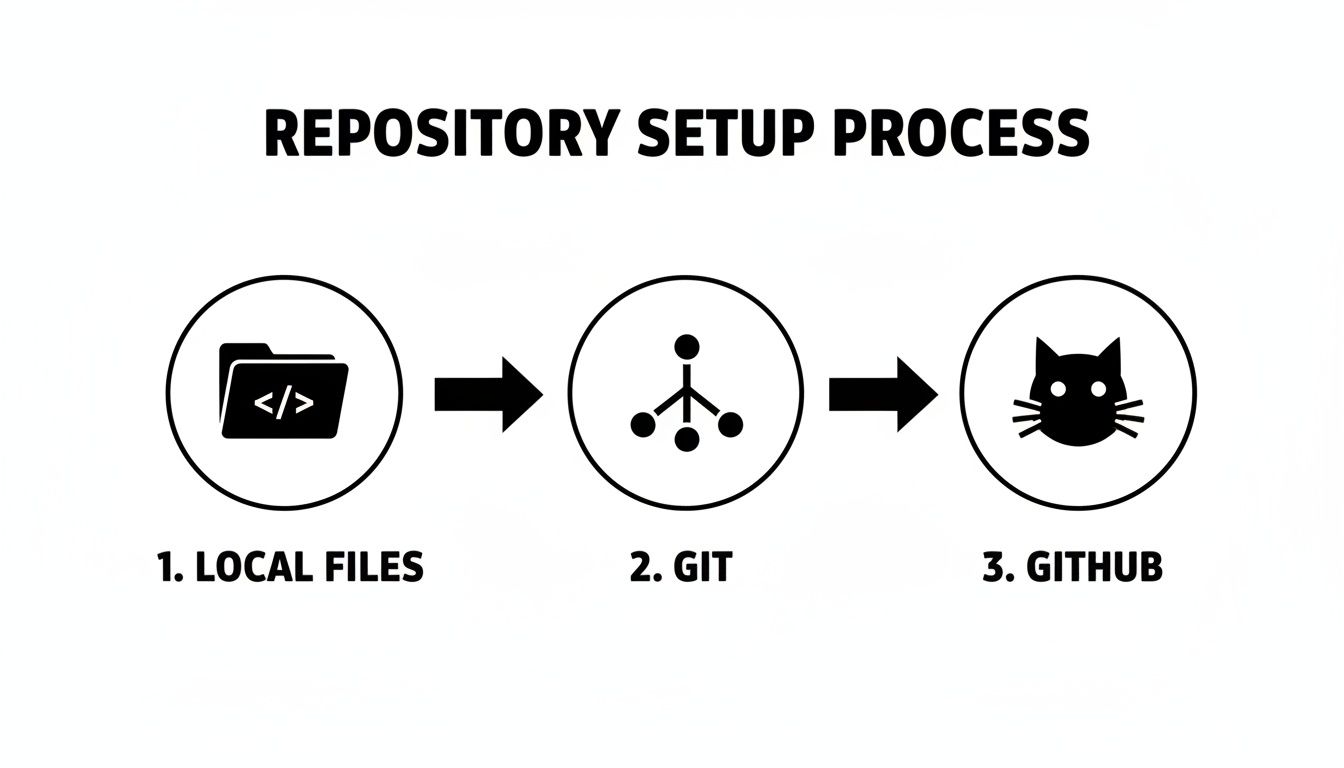
The diagram above gives you a clear picture of this path: from your local machine, to Git for version control, and finally to GitHub, which acts as the central hub for your project.
The Magic of Automatic Commits
Here’s the single biggest win of using this setup: how it handles saving your work. Every single time you save a change—whether it’s fixing a small typo or publishing a brand-new article—the editor automatically creates a commit in your GitHub repository behind the scenes.
What does that mean for you? You get a complete, versioned history of every change made to your website's content without ever having to type git commit -m "Updated blog post" again. This creates a rock-solid backup system and a transparent audit trail, which is invaluable when you're working with a team.
This seamless integration is the key to a happy team. Developers can trust that the repository's integrity is maintained, while content creators can work confidently without the fear of accidentally breaking the site. It’s a workflow that respects everyone’s role.
Publishing Your Site for Free With GitHub Pages
You’ve committed your content, the repository is synced, and now it's time for the big finale: getting your website online. This is the moment where the power of a Git-based workflow really clicks. And luckily, GitHub provides a fantastic—and free—solution called GitHub Pages.
GitHub Pages is a static site hosting service built to launch personal, project, or organization sites straight from a repository. It's the perfect last piece of the puzzle when you want to build a website with CMS features but without the headache and cost of managing a server.
The best part? It's almost completely automated.
Enabling GitHub Pages for Your Repository
Getting your site live is surprisingly straightforward. You just need to pop into your repository's settings and find the "Pages" section. Here, you'll simply tell GitHub which branch contains your website's files.
The most important setting is choosing the right source branch. For most setups, this will be your main branch, but some projects use a dedicated gh-pages branch. Once you make your selection and hit save, GitHub handles the rest. It kicks off a build-and-deploy process using its own automation tool, GitHub Actions.
So what's happening in the background? Every time a new commit is pushed to that branch—whether from a developer's terminal or a simple "Save" in a visual CMS like JekyllPad—GitHub Actions automatically wakes up, rebuilds your entire site, and publishes the fresh version.
This hands-off approach ensures your site is always in sync with your latest content, completely removing any need for manual FTP uploads or complicated deployment scripts. For a more detailed walkthrough, our guide on how to use GitHub pages for your static site has you covered.
Configuring Your Build Source and Custom Domains
After enabling GitHub Pages, you'll immediately get a public URL, which usually looks something like your-username.github.io/repository-name. While this is awesome for quick previews and testing, you'll probably want a professional custom domain for the final product.
Setting up a custom domain only takes a few minutes inside the same GitHub Pages settings panel.
- Add Your Domain: First, type your custom domain (like
www.your-awesome-site.com) into the designated field. - Update DNS Records: Next, you'll need to log in to your domain registrar (where you bought the domain, such as GoDaddy or Namecheap) and add a couple of records to point it to GitHub's servers.
GitHub gives you the exact records you need to add and even has a feature that checks your DNS settings to confirm everything is correct. It makes a potentially tricky process feel incredibly smooth.
Once it's all configured, your static site is live on your own domain, complete with a free HTTPS certificate. It’s a seamless, serverless hosting solution that perfectly wraps up the modern CMS workflow, giving you a fast, secure, and professional website that anyone on your team can update.
Got Questions About This Modern CMS Approach?
If you're used to traditional systems, jumping into a static site generator and a Git-based workflow can bring up a few questions. It’s a different way of thinking about websites, so let's tackle some of the most common things people ask.
Getting a handle on these differences is important. For a bird's-eye view of how all the pieces of building a website fit together, it’s worth exploring different website development processes, which can give you a solid foundation for where this specific method fits in.
This modern stack is incredibly powerful, but knowing when it’s the right tool for the job is half the battle.
Why Not Just Use WordPress?
Honestly, it comes down to three things: speed, security, and simplicity.
Static sites are pre-built, meaning visitors get served plain HTML files that load in a flash. We’re talking lightning-fast. Considering 47% of people expect a website to load in two seconds or less, this is a massive advantage.
Plus, with no database to hack and no server-side code to exploit, the usual security headaches just disappear. That means you can stop worrying about constant plugin updates, security patches, and server maintenance. It’s a much leaner, cheaper, and safer way to run a site.
Do I Have to Be a Coder to Use a Tool Like JekyllPad?
Not for day-to-day work, and that’s the whole point.
Yes, the initial setup of the static site generator does require someone comfortable with the command line. But once that's done, an editor like JekyllPad is built for writers, marketers, and content managers—not developers. It gives you a clean, visual interface to write and publish your work without ever seeing a line of code.
Think of it this way: the technical foundation is separate from the creative workflow. The connection to GitHub is all handled in the background, so your non-technical team members can just focus on creating great content.
This setup lets everyone play to their strengths.
Can I Run an Online Store This Way?
For simple e-commerce, absolutely. This approach is fantastic for content-heavy sites like blogs, portfolios, or documentation. If you just need to sell a few products, you can easily embed "buy buttons" from services like Shopify or Snipcart with a bit of JavaScript.
But let's be realistic. If you're building a store with a huge inventory, complex filtering, and customer accounts, a dedicated platform like Shopify or a traditional CMS with robust e-commerce plugins is probably a better fit. This static method shines brightest when top-tier performance and content are the main goals, not complex backend transactions.
Ready to manage your static site content with a fast, intuitive editor? JekyllPad connects directly to your GitHub repository, giving you a visual CMS with a live preview and automatic commits, all running in your browser. Get started for free at https://www.jekyllpad.com.