
Finding the right markdown editor online can feel overwhelming, but it's a critical choice for anyone working with static site generators, documentation, or technical content. Whether you're a developer managing a Jekyll blog, a documentation team building a knowledge base, or a content marketer working with GitHub Pages, the right tool streamlines your workflow from writing to publishing. A poor choice leads to friction, context switching, and lost productivity.
This comprehensive guide is designed to cut through the noise. We've compiled an in-depth roundup of the best web-based Markdown editors, moving beyond simple feature lists to provide practical analysis. You won't find generic marketing copy here. Instead, you'll get an honest assessment of each tool's strengths, weaknesses, and ideal use cases.
For each platform reviewed, we provide:
- A concise summary of its core purpose.
- Detailed pros and cons based on real-world usage.
- Specific "best for" scenarios to match the tool to your needs.
- Direct links and screenshots to see the editor in action.
Our goal is to help you select the best markdown editor online for your specific workflow, whether you need a simple, real-time preview tool or a powerful, Git-integrated environment. We'll explore everything from lightweight previewers like Markdown Live Preview to full-featured platforms like JekyllPad and Decap CMS, which offer CMS-like experiences for static sites. This resource will help you identify the perfect editor that integrates seamlessly into your process, allowing you to focus on creating content, not fighting your tools. Let's dive into the options.
1. JekyllPad
JekyllPad is a powerful, browser-based markdown editor online that acts as a visual content management system (CMS) specifically for static site generators (SSGs). It masterfully bridges the gap between a user-friendly writing interface and a developer-centric, Git-based workflow, making it a standout choice for technical and non-technical creators alike. The platform's core strength lies in its seamless, native GitHub integration, which transforms content creation into a simple, automated process.
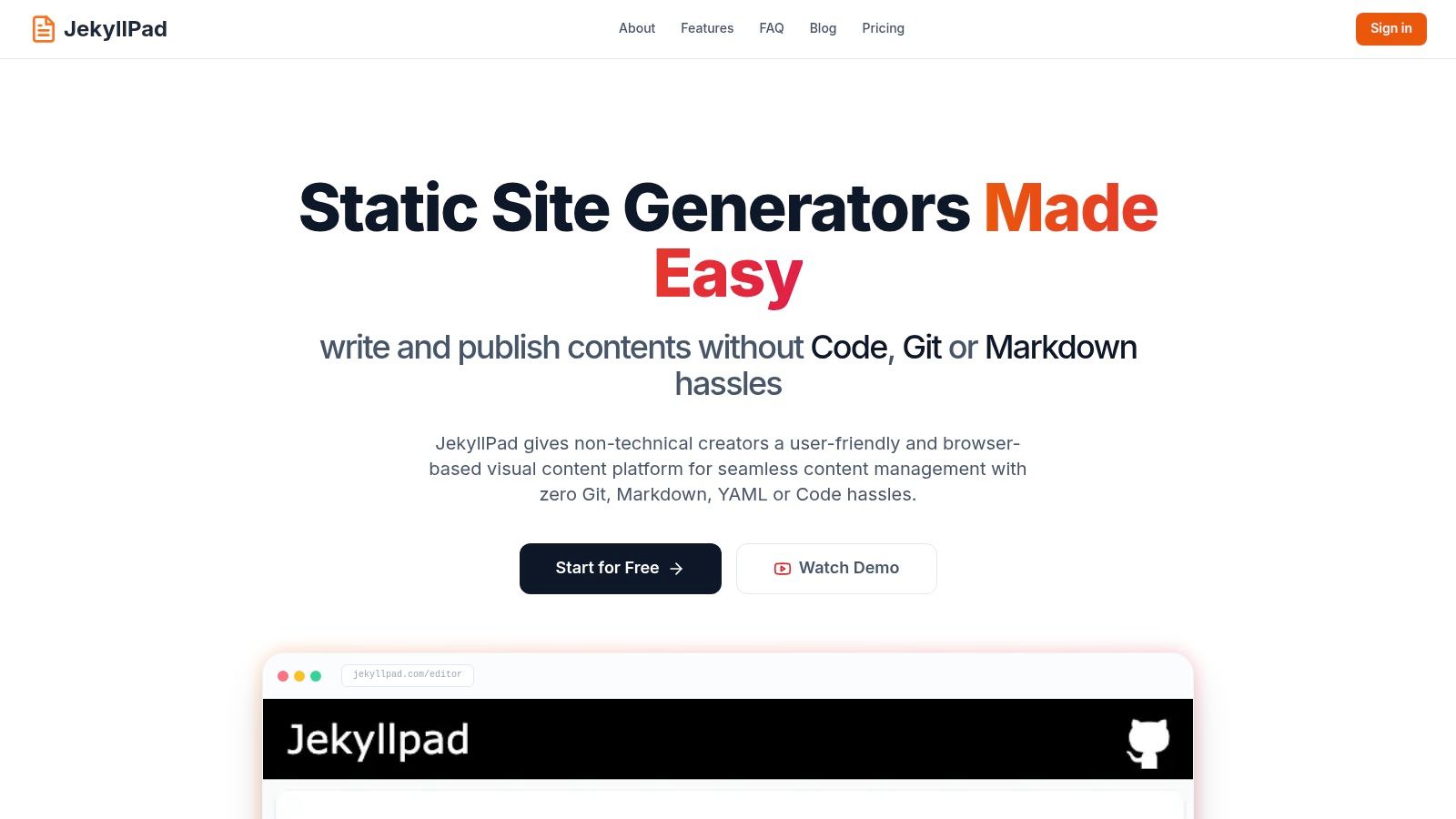
Unlike generic markdown editors, JekyllPad is engineered to streamline the entire publishing lifecycle for SSGs like Jekyll, Hugo, Astro, and Eleventy. It allows you to connect directly to your GitHub repository, edit content, and save your changes as new commits automatically. This eliminates the need to manually manage files, wrestle with YAML front-matter, or configure a separate CI/CD pipeline, making it an incredibly efficient tool for bloggers, documentation teams, and content marketers.
Key Strengths and Use Cases
The platform operates entirely client-side, meaning all data processing happens in your browser. This architecture not only enhances performance but also ensures a higher level of privacy and security, as your content never passes through a third-party server on its way to your GitHub repo.
- Best For: Technical bloggers, documentation teams, and content creators using static site generators who need a streamlined, Git-native editing experience without the typical command-line friction. It is also ideal for non-technical users who need to contribute to a static site without learning Git or YAML.
- Dual Editor Experience: JekyllPad offers a sophisticated WYSIWYG editor alongside full Markdown support and a real-time preview. This flexibility allows writers to focus on content creation while developers can still appreciate the underlying Markdown structure.
- Integrated Front-Matter Editing: One of its most practical features is the visual editor for YAML front-matter. Instead of manually editing raw text, you can update metadata like titles, dates, tags, and custom fields through a simple, form-based interface.
- Zero-Configuration Publishing: By committing changes directly to your repository, JekyllPad leverages your existing GitHub Pages or Netlify/Vercel deployment setup. Every save triggers your build process, effectively automating the publishing workflow.
Platform Details
| Feature | Description |
|---|---|
| Pricing | A generous free forever plan is available for individuals, which includes a starter allowance of 5 free posts per month. Paid plans offer higher limits and additional features. |
| Core Advantage | Direct GitHub integration combined with a client-side architecture provides unmatched speed, security, and workflow efficiency for SSG content management. |
| SSG Support | Officially supports Jekyll, Hugo, Astro, Eleventy, Gatsby, and any other SSG that uses a standard file-based structure and is hosted on GitHub. |
| Onboarding | Exceptionally simple: connect your GitHub account with one click, select a repository, and start editing content immediately. |
| Limitations | The workflow is GitHub-centric, lacking native support for other Git hosts like GitLab or Bitbucket. Advanced media management and enterprise-level collaboration tools are limited. |
Website: https://www.jekyllpad.com
2. StackEdit
StackEdit is a mature, in-browser markdown editor online that strikes an impressive balance between a traditional, code-focused interface and modern WYSIWYG conveniences. It's a go-to choice for writers and developers who need a powerful editor that works anywhere, even offline, without installation. Its core strength lies in its extensive third-party integrations, allowing users to sync documents with cloud storage or publish directly to various platforms.
The platform’s live preview panel features exceptionally accurate scroll-syncing, ensuring your view of the rendered HTML stays aligned with the source text you are editing. This tight feedback loop is invaluable for complex documents. StackEdit also supports various Markdown flavors, including GitHub Flavored Markdown (GFM) and Markdown Extra, along with advanced features like LaTeX for mathematical notations and Mermaid for diagrams.
Key Features & Use Case
StackEdit excels as a central hub for drafting and publishing. You can link your Google Drive, Dropbox, or GitHub accounts to save and manage documents, then publish finished work directly to platforms like Blogger, WordPress, and even Zendesk. This makes it ideal for technical bloggers managing content across different services or developers drafting documentation destined for a GitHub repository.
Best For: Power users and bloggers who need a robust, browser-based editor with extensive cloud sync and direct publishing capabilities.
Pricing, Pros, and Cons
StackEdit is completely free to use. Its business model relies on optional sponsorships for users who wish to support the project.
| Pros | Cons |
|---|---|
| No sign-up required to start writing | The user interface feels dated compared to newer tools |
| Works fully offline within the browser | Collaboration features are basic and not real-time |
| Powerful sync and publish integrations | Lacks a dedicated desktop application |
Website: https://stackedit.io
3. Dillinger
Dillinger is a classic, browser-based markdown editor online known for its clean, distraction-free interface and reliable performance. It offers a simple two-pane layout with source code on the left and a live preview on the right, making it an excellent choice for writers who want to focus purely on content creation without complex features getting in the way. As one of the original web-based editors, it has remained a dependable tool for quick edits and drafting.
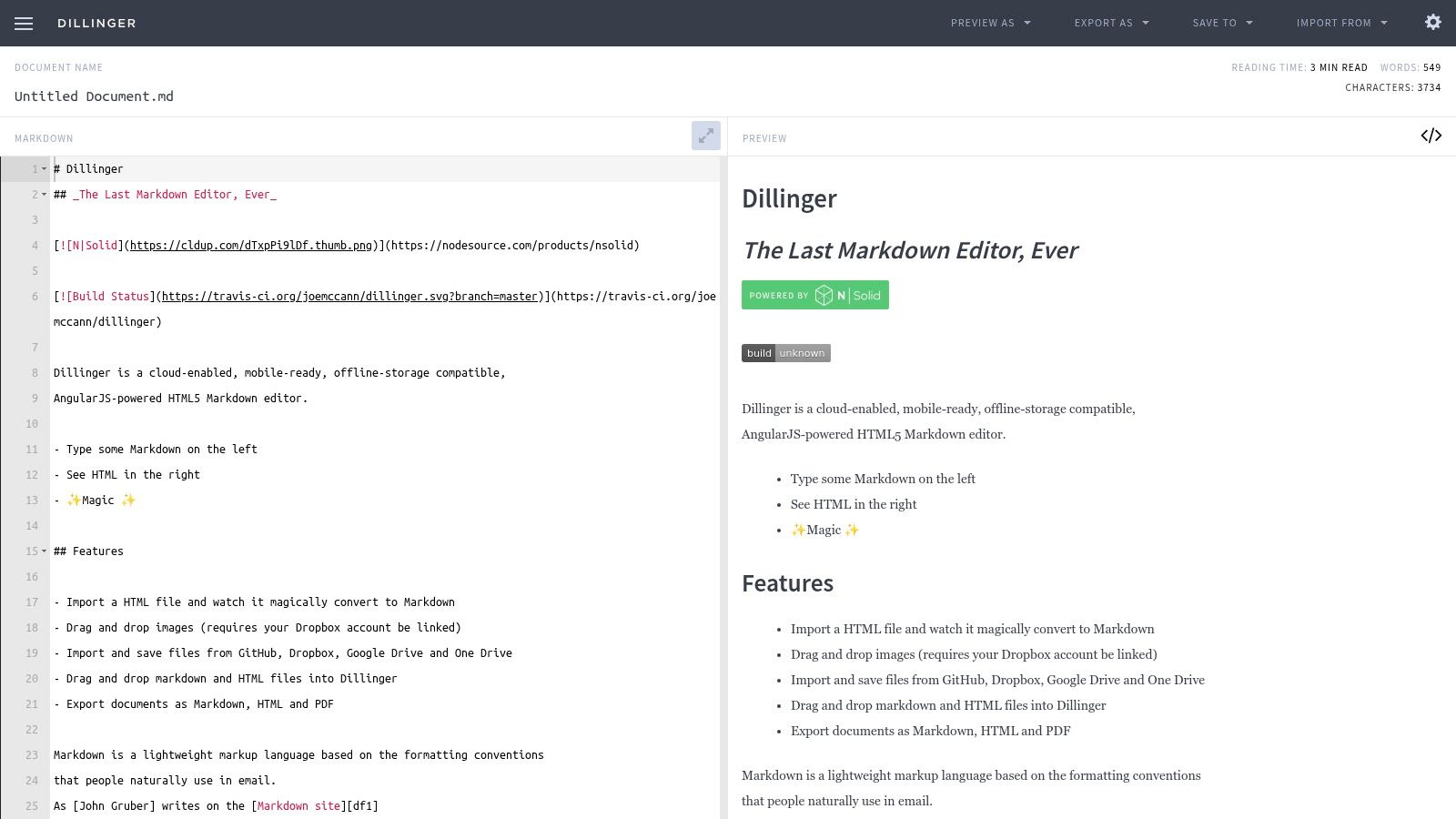
The platform is built for efficiency, providing essential features like auto-saving to browser storage and word/character counts. Its main strength lies in its seamless import and export capabilities. You can pull a file from cloud services, make edits, and save it back, or export your work to various formats including HTML and PDF. This straightforward workflow has made it a long-standing favorite in the developer community.
Key Features & Use Case
Dillinger shines as a quick, no-fuss tool for round-tripping documents with cloud storage or version control systems. Users can connect their Dropbox, Google Drive, OneDrive, and Bitbucket accounts to easily import and save files. It also offers direct publishing to platforms like Medium. This makes it ideal for developers needing to make a quick change to a README file or a blogger drafting a post to be saved in a cloud folder.
Best For: Writers and developers looking for a minimalist, reliable editor for quick drafting and seamless integration with popular cloud storage services.
Pricing, Pros, and Cons
Dillinger is entirely free and open-source, supported by its community of users and contributors.
| Pros | Cons |
|---|---|
| Zero setup required to start writing | No real-time multi-user collaboration features |
| Familiar, minimal two-pane interface is easy to use | Feature development can be slow as it is community-maintained |
| Handy import/export integrations with popular services | Lacks advanced features like diagram or formula support |
Website: https://dillinger.io
4. HackMD
HackMD is a powerful, real-time collaborative markdown editor online built for teams. It transforms Markdown into an interactive workspace for creating technical documentation, meeting notes, and project specifications. Its core strength is its Google Docs-like co-editing experience, allowing multiple users to write, comment, and suggest edits simultaneously within a shared document.
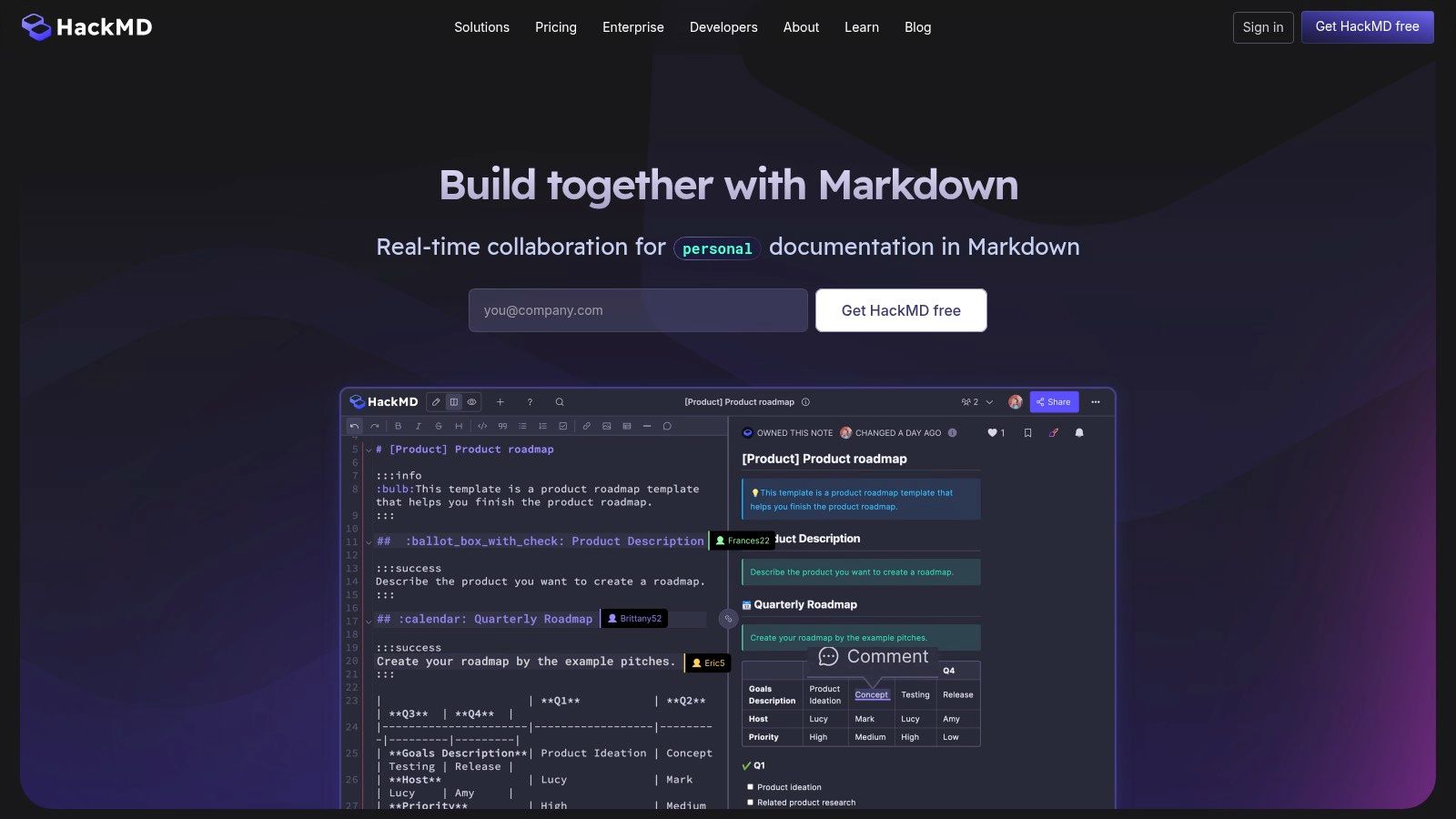
The platform goes beyond simple text editing by supporting advanced content types like LaTeX for mathematical formulas and various UML diagrams for technical illustrations. With robust permission controls, teams can manage who can view, edit, or comment on notes, making it suitable for both internal and public-facing documents. Its "Book Mode" feature allows users to organize multiple notes into a structured, easily navigable book-style website.
Key Features & Use Case
HackMD is designed for collaborative technical writing. Teams can connect a GitHub or GitLab repository to sync notes, enabling a seamless documentation-as-code workflow. This makes it perfect for developer teams drafting API documentation, engineering runbooks, or open-source project guides. The ability to use templates accelerates the creation of standardized documents like meeting agendas or bug reports.
Best For: Technical teams, open-source projects, and students who need a real-time, collaborative editor with strong version control and Git integration.
Pricing, Pros, and Cons
HackMD offers a free plan with core features. Paid plans (starting at $5/month per user) unlock larger image uploads, unlimited team members, and advanced organizational tools.
| Pros | Cons |
|---|---|
| Excellent real-time collaboration with comments | Free plan limits image upload size and teammate invites |
| Strong Git integration (GitHub/GitLab) | Advanced organization features require paid tiers |
| Easy sharing and granular permission controls | The interface can feel busy for solo writers |
Website: https://hackmd.io
5. GitHub.dev (GitHub’s web editor)
GitHub.dev is not a traditional markdown editor online but a powerful, browser-based instance of VS Code that opens directly from any GitHub repository. By simply pressing the . key on a repo page, you get a full-featured code editor in your browser, making it an exceptionally efficient tool for quick edits to Markdown files already under version control. Its primary strength is seamless integration with the GitHub workflow, allowing for edits, commits, and pull requests without ever cloning a repository locally.
The platform provides the familiar VS Code experience, including syntax highlighting, file search, and access to the source control panel. While it doesn't offer a side-by-side live preview by default like dedicated editors, you can install web-capable extensions to add Markdown previewing and linting capabilities. This transforms it from a simple text editor into a capable environment for maintaining documentation, blog posts, and project README files directly within their native repository.
Key Features & Use Case
GitHub.dev shines for developers and technical writers who need to make swift, context-aware changes to documentation or content stored in a Git repository. It is the perfect tool for fixing a typo in a README, updating a Jekyll post, or contributing to an open-source project's documentation on the fly. The ability to manage commits directly in the browser streamlines the entire contribution process, making small-scale content management incredibly fast. For a deeper look at version control platforms, you can compare GitHub vs. GitLab to see which fits your workflow best.
Best For: Developers and content managers who need to edit Markdown files within a GitHub repository quickly without a local development environment.
Pricing, Pros, and Cons
GitHub.dev is completely free to use for anyone with a GitHub account and is available for both public and private repositories.
| Pros | Cons |
|---|---|
| Instant, zero-setup access from any repository | No live preview out of the box; requires extensions |
| Integrates directly with GitHub commit workflow | Lacks a compute environment or integrated terminal |
| Familiar, powerful VS Code interface and features | Requires a GitHub account to commit changes |
Website: https://github.dev
6. GitHub Codespaces
GitHub Codespaces isn't a dedicated markdown editor online in the traditional sense; it's a complete, cloud-hosted development environment that runs Visual Studio Code directly in your browser. Its power lies in providing a full-fidelity coding and editing experience, making it an unparalleled choice for developers and technical writers working on documentation-heavy projects, like those using static site generators (SSGs). You get access to a terminal, extensions, and source control, all within the context of your repository.
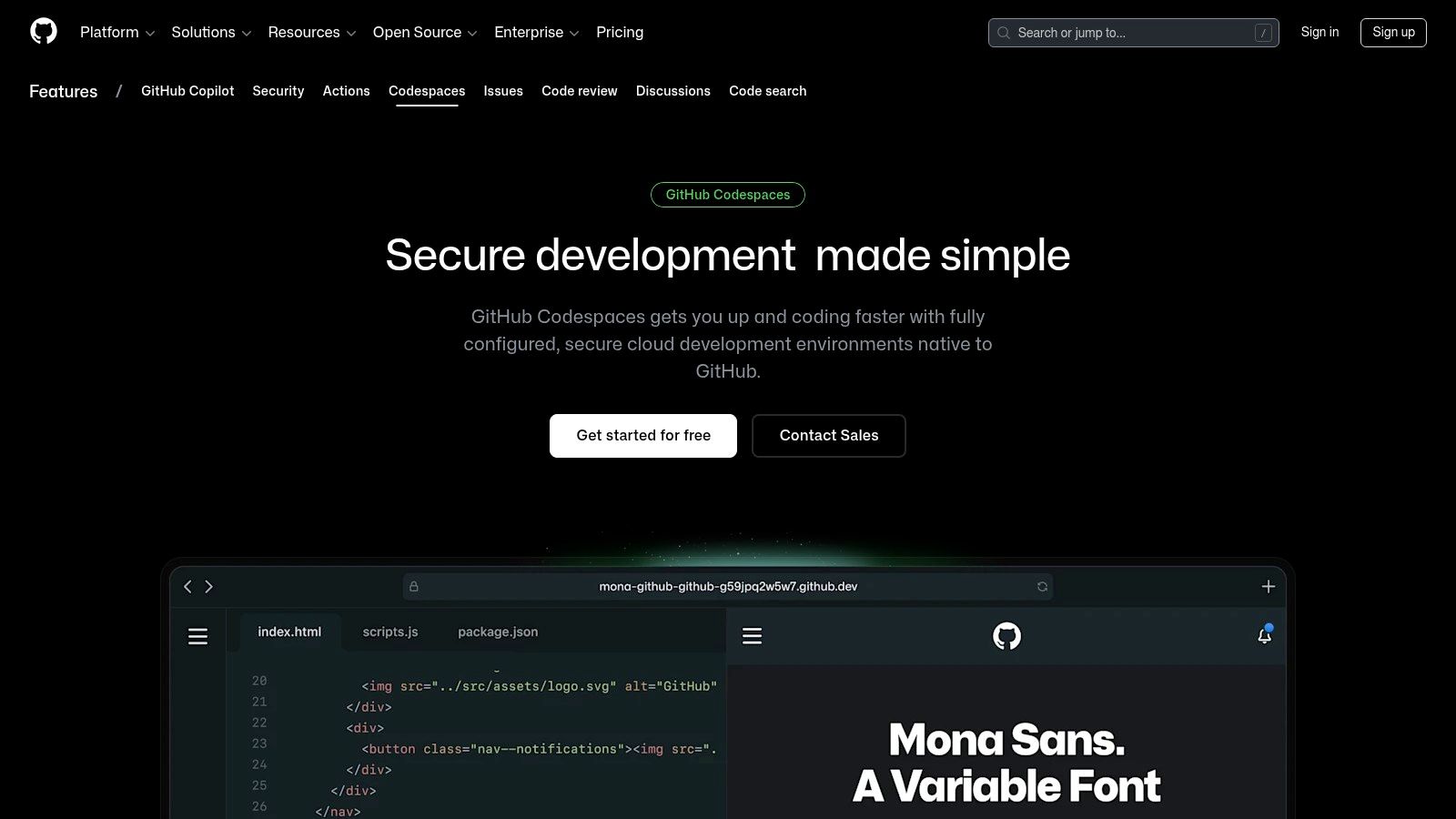
This tight integration means you can edit Markdown files, run a local server to preview your static site, and commit changes without ever leaving your browser. The environment is consistent and reproducible, solving the "it works on my machine" problem for documentation contributors. You can install any VS Code extension, like Markdown linters or preview enhancers, to create your perfect editing setup.
Key Features & Use Case
Codespaces shines when your Markdown content is intertwined with a codebase. It's ideal for teams managing documentation sites with Hugo, Jekyll, or Astro. A contributor can spin up a pre-configured Codespace, make their edits with a live preview running in the integrated terminal, and submit a pull request from a fully functional environment. This streamlines the contribution process for both technical and non-technical team members.
Best For: Developers and documentation teams who need to edit Markdown within the full context of a code repository, including running local servers and using development tools.
Pricing, Pros, and Cons
GitHub Codespaces operates on a pay-as-you-go model. A generous free tier is included for personal accounts (e.g., 90 core-hours per month), but usage beyond that is metered based on compute time and storage.
| Pros | Cons |
|---|---|
| Full VS Code in the browser | Usage beyond the free quota incurs metered costs |
| Perfect for SSG and docs-as-code workflows | Overkill for simple, standalone Markdown files |
| Ensures a consistent environment for all contributors | Requires setup and permissions within organizations |
Website: https://github.com/features/codespaces
7. GitLab Web Editor and Web IDE
For development teams already embedded in the GitLab ecosystem, the built-in Web Editor and Web IDE serve as a powerful, context-aware markdown editor online. Rather than being a standalone tool, it's a feature designed for editing repository files directly in the browser, complete with robust version control. It's the ideal solution for making quick documentation changes, editing READMEs, or drafting content that lives alongside code, all within the familiar GitLab interface.
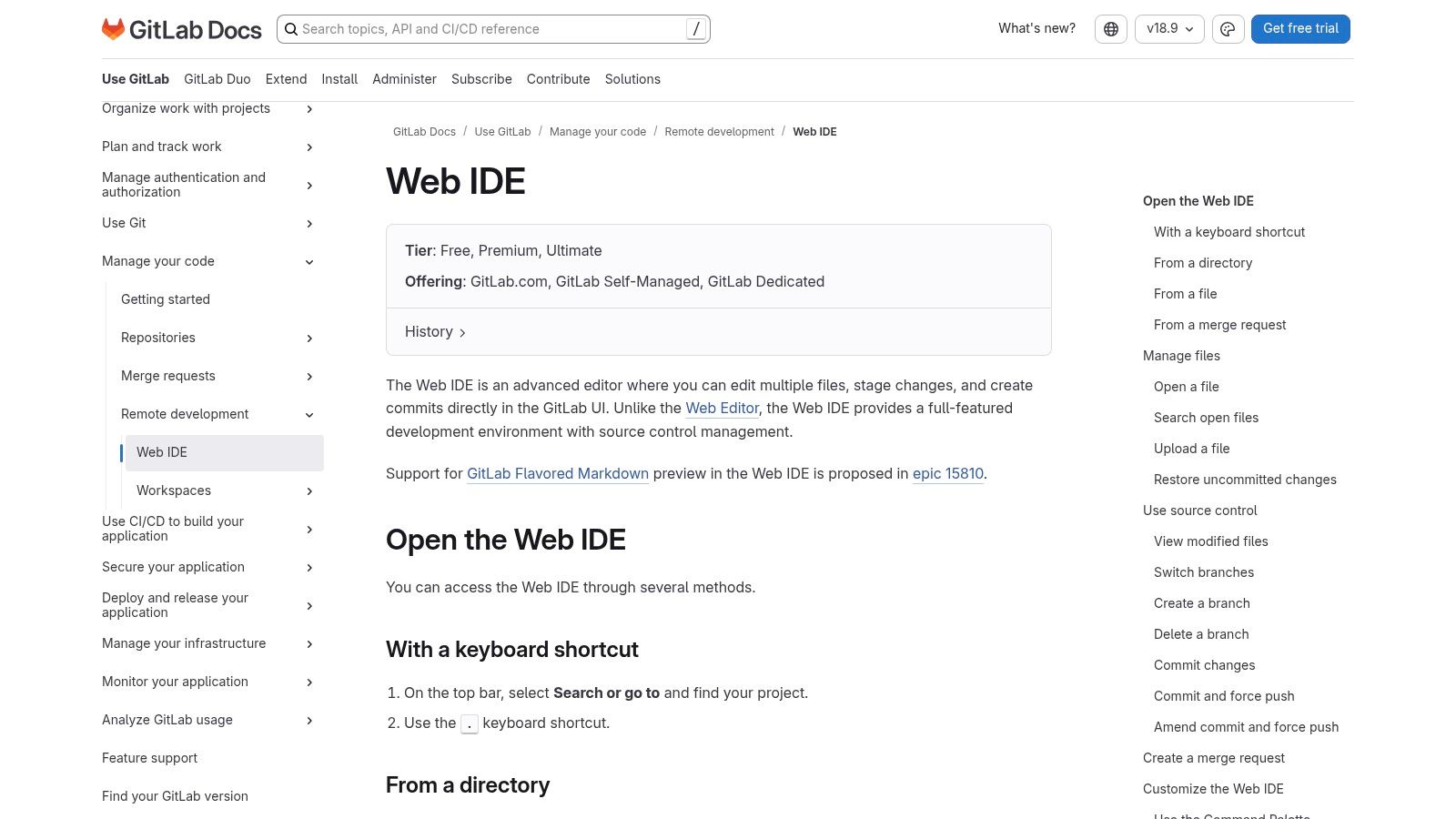
The editor provides a live preview that renders GitLab Flavored Markdown (GLFM), which extends standard Markdown with useful additions like diagrams, flowcharts, and math notations. The more advanced Web IDE offers a VS Code-like experience, supporting multi-file editing, keyboard shortcuts, and a commit-staging area. This integration makes it seamless to create a new branch, edit a Markdown file, and submit a merge request without ever cloning the repository locally.
Key Features & Use Case
The primary use case is for teams managing documentation as code. When a developer updates a feature, they can immediately edit the corresponding Markdown documentation in the same merge request. This workflow ensures that documentation stays synchronized with the codebase. It's perfect for updating project wikis, writing technical articles for a GitLab Pages site, or refining issue and merge request descriptions with rich formatting.
Best For: Development and documentation teams who use GitLab for version control and want an integrated workflow for editing Markdown files directly in their repositories.
Pricing, Pros, and Cons
The Web Editor and Web IDE are included features within GitLab's Free tier, with more advanced capabilities available in paid plans.
| Pros | Cons |
|---|---|
| No local setup required for quick edits | Markdown preview may differ from final site build pipelines |
| All changes are tracked via Git and merge requests | Web IDE preview features can be limited for complex sites |
| A familiar experience for teams that already use GitLab | Not a standalone editor; requires a GitLab project |
Website: https://docs.gitlab.com/ee/user/project/web_ide/
8. GitBook
GitBook is more than just a markdown editor online; it's a comprehensive platform designed for creating, managing, and publishing beautiful documentation. It modernizes the documentation workflow with a collaborative, block-based editor that supports Markdown shortcuts but presents content in a polished, WYSIWYG-like interface. Its core strength is its seamless integration with Git, allowing teams to sync content directly from GitHub or GitLab repositories, blending the power of version control with a user-friendly editing experience.
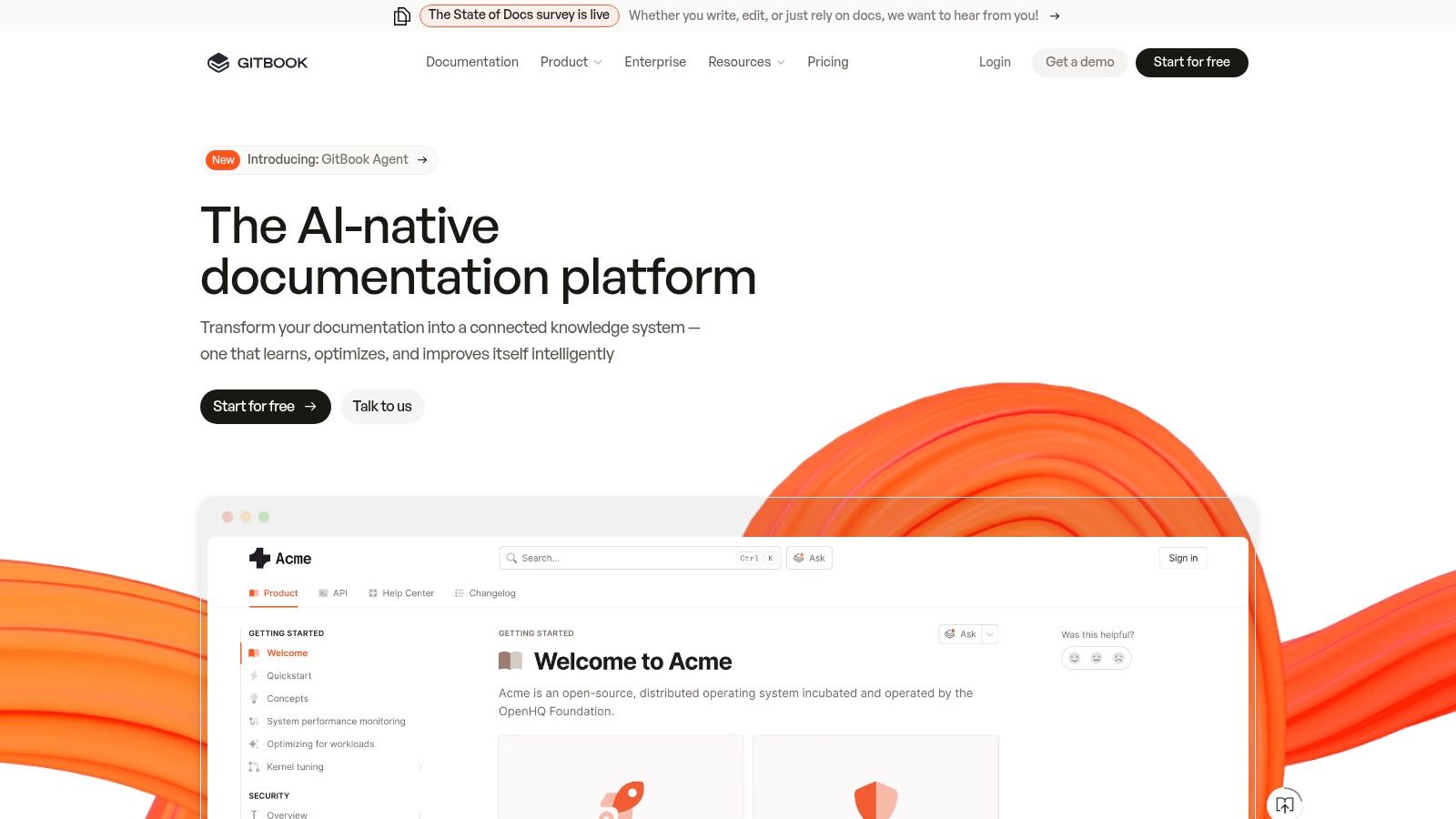
The platform is engineered to transform plain Markdown files into a professional, searchable knowledge base with minimal effort. Features like branded publishing, custom domains, access controls, and powerful insights make it an all-in-one solution for product documentation, internal wikis, and API references. GitBook also incorporates AI-assisted features to help teams write, summarize, and improve their content more efficiently.
Key Features & Use Case
GitBook excels as a hosted solution for teams that need to publish and maintain high-quality documentation. Its Git synchronization allows developers to keep documentation alongside code, while the web editor empowers non-technical team members to contribute easily. This makes it ideal for software companies creating public-facing help centers, API documentation, or internal knowledge bases that require collaboration, versioning, and a polished final presentation.
Best For: Technical writing teams and software companies needing a collaborative, hosted platform to publish polished product and developer documentation.
Pricing, Pros, and Cons
GitBook offers a free plan for personal projects and small open-source teams. Paid plans (starting at $6.70 per user/month) unlock custom domains, private content, advanced integrations, and team features.
| Pros | Cons |
|---|---|
| Polished publishing workflow with minimal setup | Editor is block-based, not a pure raw Markdown pane |
| Powerful collaboration and version-control features | Pricing scales with sites, users, and advanced features |
| Excellent reader experience with search and navigation | Less control over the final site build than a static site generator |
Website: https://www.gitbook.com
9. HedgeDoc
HedgeDoc (formerly CodiMD) is a powerful, open-source markdown editor online built for real-time, multi-user collaboration. Its primary strength is that it can be self-hosted, giving teams complete control over their data and infrastructure. This makes it a standout choice for organizations with strict privacy requirements or those wanting to integrate a collaborative editor into their existing toolset without relying on third-party services.

The platform supports a rich feature set beyond basic text editing, including a presentation mode powered by reveal.js, allowing you to create and share slideshows directly from your Markdown notes. It also handles advanced content like UML diagrams, graphs, and audio/video embeds, making it suitable for technical documentation, meeting notes, and collaborative brainstorming sessions. Revision history allows users to track changes and revert to previous versions of a document with ease.
Key Features & Use Case
HedgeDoc is engineered for teams that need a secure, private collaboration space. By self-hosting via Docker or other methods, a company can ensure all its sensitive documentation remains on its own servers. It's perfect for internal knowledge bases, collaborative drafting of technical specs, or as a teaching tool in an academic environment where multiple students need to work on a document simultaneously. The permissions system lets you control who can read or write to a note, adding another layer of security.
Best For: Teams and organizations that require a self-hosted, real-time collaborative editor for enhanced data privacy and control.
Pricing, Pros, and Cons
HedgeDoc is free, open-source software. The only costs are associated with the server infrastructure and maintenance required for self-hosting. A public demo instance is available for testing, but it is not intended for private or persistent data.
| Pros | Cons |
|---|---|
| Complete data control via self-hosting | Requires technical effort to set up and maintain |
| Real-time collaboration without per-user fees | Public demo has privacy and reliability limits |
| Feature-rich (presentations, diagrams, revisions) | No dedicated commercial support available |
Website: https://hedgedoc.org
10. Decap CMS (formerly Netlify CMS)
Decap CMS is not just a standalone markdown editor online; it's a complete, Git-based content management system that brings a user-friendly editor interface to static websites. It operates directly on top of your Git repository (GitHub, GitLab, etc.), allowing non-technical users to create and edit content that is committed as clean Markdown files. This unique approach bridges the gap between powerful static site generators and traditional, database-driven CMS platforms.
The platform’s core is a rich Markdown widget that offers both raw text and a rich-text editing experience with a configurable toolbar. Its power lies in its deep integration with your site’s build process. You can configure a live preview that accurately reflects how the content will look once published, creating a seamless workflow for content teams. It is also highly extensible with remark plugins and custom editor components, allowing developers to tailor the editing experience.
Key Features & Use Case
Decap CMS excels in collaborative environments where developers manage the site structure and content creators need a simple interface. It is a perfect fit for teams using static site generators like Jekyll, Hugo, or Eleventy to manage documentation, blogs, or marketing websites. The editor makes adding new posts or updating pages as simple as filling out a form, while developers retain full control over the versioned content in Git.
Best For: Teams managing content for static websites who need a user-friendly editor that commits Markdown directly to a Git repository.
Pricing, Pros, and Cons
Decap CMS is an open-source and free project. Costs are associated only with the hosting and Git provider you choose to use with it.
| Pros | Cons |
|---|---|
| Keeps content as portable Markdown files in your repo | Requires technical setup and configuration within your site |
| Works with any static site generator and Git provider | Live preview fidelity depends on your own build setup |
| Provides a friendly UI for non-technical editors | Can be overkill if you just need a simple, standalone editor |
Website: https://decapcms.org
11. readme.so
readme.so is not a general-purpose markdown editor online; it is a highly specialized tool designed to do one thing exceptionally well: build professional README files for software projects. It streamlines the creation of clear, well-structured documentation by providing a library of common README sections that users can add, remove, and reorder with a single click. This template-driven approach removes the friction of starting from a blank page.
The platform presents a clean, two-panel interface with a component library on the left and a live editor/preview on the right. Users can quickly add sections like "Installation," "Usage," "Contributing," and "License," each pre-populated with placeholder content and helpful guidance. Once the structure is complete, you can edit the content directly and then download the final Markdown file or copy the raw text to paste into your repository.
Key Features & Use Case
The primary use case for readme.so is for developers who need to quickly generate a comprehensive and polished README file for a new GitHub, GitLab, or Bitbucket project. It eliminates the need to remember common sections or Markdown syntax for elements like badges or code blocks. For teams looking to manage more extensive documentation directly from their repository, using a GitHub-based CMS might be a more scalable long-term solution.
Best For: Developers and open-source maintainers who need to rapidly create structured, high-quality README files without manual formatting.
Pricing, Pros, and Cons
readme.so is completely free to use and open-source. There are no paid tiers or sign-up requirements.
| Pros | Cons |
|---|---|
| Extremely fast for creating a clean README structure | Narrow scope, not suitable for general document writing |
| No account required to start building | Lacks advanced editing or collaboration features |
| Section templates simplify the process immensely | Customization options are limited to the content itself |
Website: https://readme.so
12. Markdown Live Preview
Markdown Live Preview is a minimalist, single-purpose markdown editor online designed for speed and simplicity. It provides a clean, distraction-free environment for users who need to quickly write, format, or check Markdown syntax without the overhead of a full-featured application. Its primary strength is its immediacy; the site loads instantly and offers a straightforward, two-pane view with perfect scroll-syncing between the raw text and the live preview.
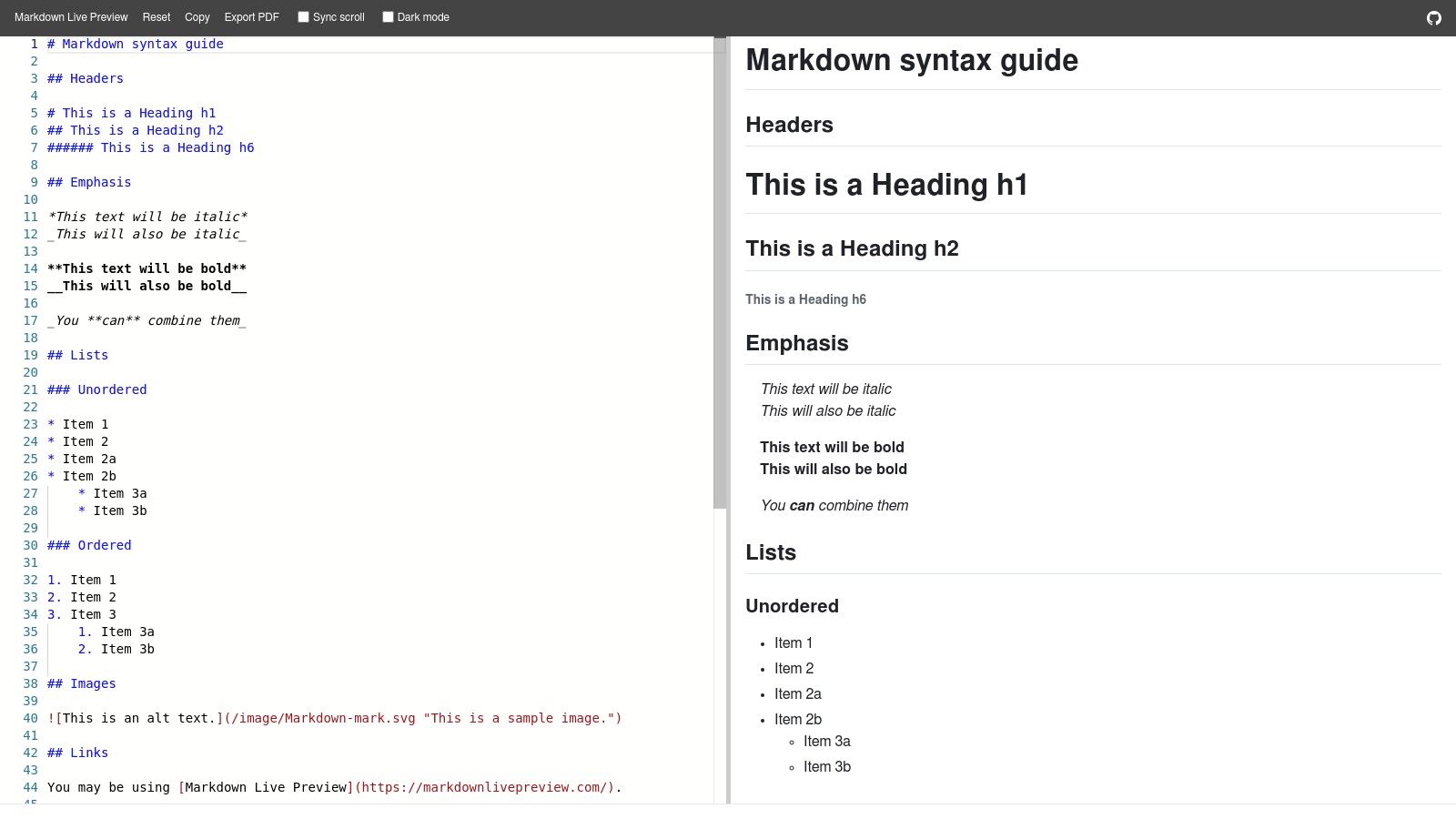
The platform strips away complex features like cloud syncing and publishing integrations, focusing instead on the core editing experience. This makes it an excellent scratchpad for drafting short documents, testing snippets of code, or converting text to HTML on the fly. Its responsive design works flawlessly on any device, making it a handy tool to have bookmarked for those moments when you just need to see how your Markdown will render. For a broader look at different tools, you can find more information about another online markdown editor to compare features.
Key Features & Use Case
Markdown Live Preview is ideal for quick tasks and immediate feedback. Use cases include a developer checking the formatting of a README file, a writer quickly drafting an email in Markdown, or a student formatting notes. The dark mode is easy on the eyes for extended writing sessions, while the quick copy-to-clipboard and export-to-PDF functions provide simple ways to get your content out of the editor and into its final destination.
Best For: Anyone needing a fast, no-frills tool for quick Markdown writing, previewing, and formatting checks without any setup.
Pricing, Pros, and Cons
Markdown Live Preview is entirely free to use with no sign-up required.
| Pros | Cons |
|---|---|
| Zero friction and loads instantly in any browser | No file management or document storage |
| Simple, clean, and distraction-free interface | Lacks collaboration, sync, or publishing features |
| Perfect for quick formatting or preview checks | Not suitable for complex, multi-file projects |
Website: https://markdownlivepreview.com
Top 12 Online Markdown Editors — Feature Comparison
| Product | Core features | UX / Quality (★) | Price / Value (💰) | Target audience (👥) | Unique selling points (✨) |
|---|---|---|---|---|---|
| 🏆 JekyllPad | WYSIWYG + Markdown, real‑time preview, front‑matter, native GitHub commits, client‑side | ★★★★☆ | 💰 Freemium — free forever (basic, 5 posts/mo) | 👥 Technical bloggers, docs teams, non‑technical creators | ✨ Native GitHub sync, client‑side privacy, multi‑SSG support |
| StackEdit | In‑browser Markdown, live preview, cloud sync (Google/Dropbox/GitHub), offline | ★★★★☆ | 💰 Free / open | 👥 Writers & power‑users | ✨ Offline mode + many publish targets |
| Dillinger | Split‑pane editor, import/export (MD/HTML/PDF), cloud integrations | ★★★☆☆ | 💰 Free | 👥 Quick editors & content round‑trips | ✨ Minimal UI with handy export options |
| HackMD | Real‑time co‑editing, comments, templates, publishing, Git integrations | ★★★★☆ | 💰 Freemium (limits on free) | 👥 Teams, collaborative docs & meetings | ✨ Real‑time collaboration + commenting/suggest edits |
| GitHub.dev | VS Code–powered web editor, syntax highlighting, SCM view | ★★★★☆ | 💰 Free | 👥 Repo maintainers & devs | ✨ Instant VS Code in browser (open with ".") |
| GitHub Codespaces | Full cloud VS Code, terminal, extensions, previews, adjustable machines | ★★★★★ | 💰 Metered / paid beyond free quota | 👥 Developers, reviewers, CI‑style workflows | ✨ Full dev environment in browser with persistent state |
| GitLab Web Editor | In‑repo Markdown editor, GLFM preview, Web IDE multi‑file edits | ★★★★☆ | 💰 Included with GitLab (tiers) | 👥 GitLab teams & repo editors | ✨ Tight MR workflows and GLFM preview |
| GitBook | Block‑based editor, Git sync, branded publishing, access controls, AI tools | ★★★★☆ | 💰 Paid (scales with seats/features) | 👥 Product docs, developer docs, knowledge bases | ✨ Polished publishing + analytics & AI features |
| HedgeDoc | Real‑time collaborative Markdown, presentation mode, self‑hostable | ★★★★☆ | 💰 Open‑source (self‑host) | 👥 Teams needing data control & self‑hosted collab | ✨ Self‑hosting + presentation/diagram features |
| Decap CMS | Git‑backed CMS, rich Markdown widget, preview, extensible widgets | ★★★★☆ | 💰 Open‑source (requires setup) | 👥 Static site editors & maintainers | ✨ Keeps content as versioned Markdown in repo |
| readme.so | README section templates, live edit, quick export | ★★★☆☆ | 💰 Free | 👥 Open‑source maintainers & repo authors | ✨ Rapid README assembly with section library |
| Markdown Live Preview | Minimal editor with sync scroll, dark mode, quick export | ★★★☆☆ | 💰 Free | 👥 Fast formatting checks & short drafts | ✨ Instant, distraction‑free live preview |
Final Thoughts
Navigating the landscape of online Markdown editors reveals a surprisingly diverse ecosystem, each tool tailored to a specific workflow, user type, and technical comfort level. What began as a simple syntax for web writers has evolved into the backbone of modern documentation, technical blogging, and collaborative content creation. Our extensive exploration of tools from the developer-centric GitHub Codespaces to the user-friendly JekyllPad underscores a critical takeaway: the "best" markdown editor online is not a one-size-fits-all solution. Instead, it is the one that seamlessly integrates into your existing processes, minimizes friction, and empowers you to focus on creating content, not fighting with your tools.
The right choice hinges entirely on your unique context. A solo technical blogger using a static site generator has vastly different needs than a large documentation team collaborating on a complex software project. Your decision-making process should be a deliberate one, balancing features, usability, and integration capabilities against your specific goals.
Key Takeaways and Decision-Making Framework
As you move forward, reflect on the core themes we've uncovered. The spectrum of available tools can be broadly categorized, from minimalist live previewers like Dillinger to full-blown content management systems like Decap CMS. The most significant dividing line often lies between developer-oriented environments and creator-focused platforms.
To help you make a final decision, consider these critical factors:
- Workflow Integration: How well does the editor fit into your current content pipeline? For developers and technical writers using Git, editors like GitHub.dev, GitLab's Web IDE, and dedicated tools like StackEdit offer powerful, repository-aware workflows. They treat your content as code, which is ideal for version control and CI/CD pipelines.
- Collaboration Needs: Are you working alone or with a team? For real-time, Google Docs-style collaboration, HackMD and HedgeDoc are unmatched. They excel in environments where multiple contributors need to draft, edit, and comment on a single document simultaneously. GitBook also offers robust team features, albeit within a more structured, documentation-centric framework.
- Technical Proficiency: Be honest about your comfort level with Git, YAML front matter, and the command line. Tools like GitHub Codespaces provide immense power but come with a steeper learning curve. Conversely, a platform like JekyllPad is explicitly designed to abstract away this complexity, offering a visual, user-friendly interface for non-technical creators to manage static sites without ever touching a terminal.
- Primary Use Case: What are you primarily creating? If your goal is to quickly generate a high-quality
README.mdfile for a new project,readme.sois the perfect single-purpose tool. If you're building a comprehensive knowledge base, GitBook's structured approach is superior. For bloggers on Jekyll or Hugo, an editor that understands front matter and asset paths is non-negotiable.
Final Guidance for Selecting Your Editor
The ultimate goal is to find an online Markdown editor that feels like an extension of your own thinking process. It should remove barriers, not create them. For many technical users, the convenience of editing directly within their Git provider's interface (GitHub.dev or GitLab Web IDE) is the most efficient path. It keeps everything consolidated and leverages familiar version control practices.
However, for the growing community of creators, marketers, and writers embracing the performance and security of static site generators, the equation changes. The raw, code-centric nature of many developer tools can be a significant obstacle to consistent content production. This is where specialized platforms provide immense value by bridging the gap between a powerful backend (like Jekyll or Hugo) and a simple, intuitive frontend.
Your choice of a markdown editor online will profoundly impact your content velocity and creative enjoyment. Take the time to experiment with a few top contenders from our list. Test how they handle your typical content, from simple posts to complex pages with custom metadata. By aligning the tool's strengths with your specific workflow, you can unlock a more efficient, productive, and enjoyable writing experience.
If your goal is to harness the power of a static site generator like Jekyll without the steep learning curve of Git and command-line tools, JekyllPad is built for you. It's the markdown editor online that transforms your GitHub repository into a visual, intuitive CMS, empowering you to focus purely on your content. Try JekyllPad today and experience a truly seamless static site workflow.