
Ever heard the term WYSIWYG editor and wondered what it meant? It’s an acronym that stands for What You See Is What You Get, and it perfectly describes how these tools work.
Think of it like using Google Docs or Microsoft Word. When you bold some text, add a heading, or drop in an image, you see the result right away, exactly as it will appear. A WYSIWYG editor brings that same instant visual feedback to creating content for the web, taking all the guesswork out of the process.

What Visual Editing Actually Feels Like
Imagine trying to build a website by writing lines of code, saving your file, and then frantically refreshing your browser just to see if you put a comma in the right place. That's how it used to be. You were essentially flying blind, working with abstract code instead of the final product.
WYSIWYG editors changed everything. They act as a translator, taking your simple clicks—like hitting the "bold" button—and turning them into the proper HTML code behind the scenes. You get to focus on what really matters: your message and its design. This opened up web publishing to millions of people who weren't coders.
How It Works in Practice
The real magic is in the interface. It's designed to be intuitive, with a familiar toolbar full of icons that most of us recognize from basic word processors. This means you can get started with virtually no training.
These simple controls are what make it all possible:
- Text Formatting: Click a button to make text bold, italic, or underlined. No need to remember
<b>or<em>tags. - Headings and Structure: Organize your content with H2s or H3s by just picking one from a dropdown menu.
- Media Integration: Adding images or videos is as easy as clicking "insert" and choosing a file, not wrestling with complex code.
WYSIWYG Editor at a Glance
To put it simply, these editors are all about direct visual manipulation. Here’s a quick summary of their core DNA.
| Feature | Description |
|---|---|
| Live Preview | The editing screen mirrors the final appearance of the content on a live webpage. |
| Intuitive Toolbar | A graphical interface with familiar icons for formatting text, adding links, and inserting media. |
| No-Code Experience | Users don't need to know HTML or CSS to create and style their content. |
| Direct Manipulation | Changes are made directly on the visual representation of the content, not in a separate code view. |
Ultimately, the core value is removing the barrier between your idea and the final result. It's a seamless, intuitive way to create.
How Visual Editors Translate Clicks Into Code
Ever wondered what's really going on when you click the 'Bold' button? It might feel like magic, but a WYSIWYG editor is actually acting as a clever translator, working as the middleman between you and the raw code of your website. It takes your simple visual commands and converts them into the precise language a web browser needs to display your content.
When you interact with the editor—say, by highlighting text, picking a heading style, or dropping in an image—you're not directly changing what the final document looks like. What you're actually doing is kicking off a series of events that the editor's engine is constantly waiting for. This engine is almost always built with JavaScript, the language that brings web pages to life.
The JavaScript Event Model
At its heart, a WYSIWYG editor's functionality hinges on JavaScript's knack for reacting to user actions. Every single click or keystroke is an "event" that the editor’s code knows how to handle.
Here’s a quick peek under the hood:
- Listening for Action: The editor is always on the lookout for user inputs, like a
mousedownevent when you click the bold button orkeyupevents as you're typing away. - Figuring Out What's Selected: The moment you click a formatting button, JavaScript instantly figures out exactly what piece of text you've highlighted in the editing window.
- Changing the Structure (DOM Manipulation): Next, it gets to work directly manipulating the Document Object Model (DOM)—think of this as the live, structural blueprint of your page's content. To make your text bold, it wraps your selection in
<strong>tags. - Showing You the Result: The browser's rendering engine sees this change to the DOM and immediately displays your text as bold. This instant feedback loop is what makes the whole experience feel so smooth and direct.
This entire process happens in a flash, usually just a few milliseconds. It creates a convincing illusion that you're directly styling the final page, when in reality, the editor is methodically building a clean HTML document behind the curtain, one click at a time.
The real genius of a WYSIWYG editor is its abstraction layer. It hides all the messy details of HTML and CSS, freeing you up to focus on what you're trying to say, not how to code it.
From Visual Clicks to Structured Content
This translation process handles much more than just simple text formatting. When you create a bulleted list, the editor is busy generating the proper <ul> and <li> elements. When you upload a picture, it's creating an <img> tag complete with the correct source (src) attribute.
This becomes even more important in more advanced setups, like those used with static site generators. Here, the editor has to do more than just churn out clean HTML; it also has to manage structured data, like front matter. For a deeper dive into this, check out our guide on how JekyllPad works. It breaks down how a visual editor can plug right into a static site workflow, turning intuitive clicks and keystrokes into perfectly formatted Markdown and YAML files, all ready to be published. That seamless translation is what makes a modern WYSIWYG editor such a powerful tool.
The Evolution from Complex Code to Simple Clicks
It’s easy to forget, but creating content for the web used to be a real headache. In the early days, building even a basic webpage was a purely technical job. You’d find yourself staring at a plain text file, typing out endless lines of HTML, saving it, then flipping over to a browser and hitting refresh just to see if your changes actually worked. There was no instant feedback, just a constant loop of code, save, and refresh.
This whole process was slow and incredibly unforgiving. One tiny mistake—a single misplaced bracket—could break the entire page. Then came the fun part: hunting through hundreds of lines of code to find the culprit. This technical barrier meant that only developers and a handful of tech-savvy folks could really create for the web. Marketers, writers, and business owners had fantastic ideas but no straightforward way to get them online without learning to code.
The Shift from Markup to Visuals
The big breakthrough came from a surprisingly simple idea: what if you could just design a document on a screen and have it look exactly like the final product? This concept was born at Xerox PARC back in the 1970s, where a team of innovators developed Bravo, the very first WYSIWYG word processor, in 1974. By the mid-1980s, especially after Apple helped bring the idea to the mainstream, a survey found that 65% of U.S. office workers preferred these new visual editors. The reason was clear: they slashed editing time by an average of 40%. You can explore more about this history of WYSIWYG editors and their impact.
This change was huge. It swapped out the abstract, often confusing world of code for a direct, tangible, and creative experience. The focus shifted from just writing markup to actually designing layouts, which opened the door for a whole new generation of creators.
This evolution wasn’t just a technological improvement; it was a fundamental democratization of digital publishing. It handed the power to create from the few to the many.
The Impact on Modern Content Creation
This move toward visual editing has had a lasting impact, particularly as modern web technologies have taken off. Today, WYSIWYG editors are the backbone of everything from popular blogging platforms to the powerful content management systems that run massive projects. They act as the essential bridge that allows non-technical users to contribute to highly technical workflows.
This is especially true for static site generators, which are loved for their speed and security but often require some comfort with the command line. A visual editor gets rid of that friction completely. It lets content teams manage a fast, modern website without ever needing to touch a line of code. If you're curious, you can learn more by checking out our guide on what a static site generator is.
Ultimately, this progression from complex code to simple clicks fundamentally changed who could build the web, making it a far more accessible and creative space for everyone.
Choosing Your Tool: WYSIWYG vs. Markdown vs. Code
When it comes to creating content, the tool you choose shapes your entire workflow. It’s not a one-size-fits-all situation. The decision between a WYSIWYG editor, a Markdown editor, or digging directly into the source code really comes down to what you need to accomplish, your comfort level with tech, and the goals of your project.
Getting a handle on the key differences between these approaches is the first step toward finding the perfect fit for how you work.
Over the years, the way we build for the web has steadily shifted from complex, code-heavy interfaces toward more intuitive, visual experiences.
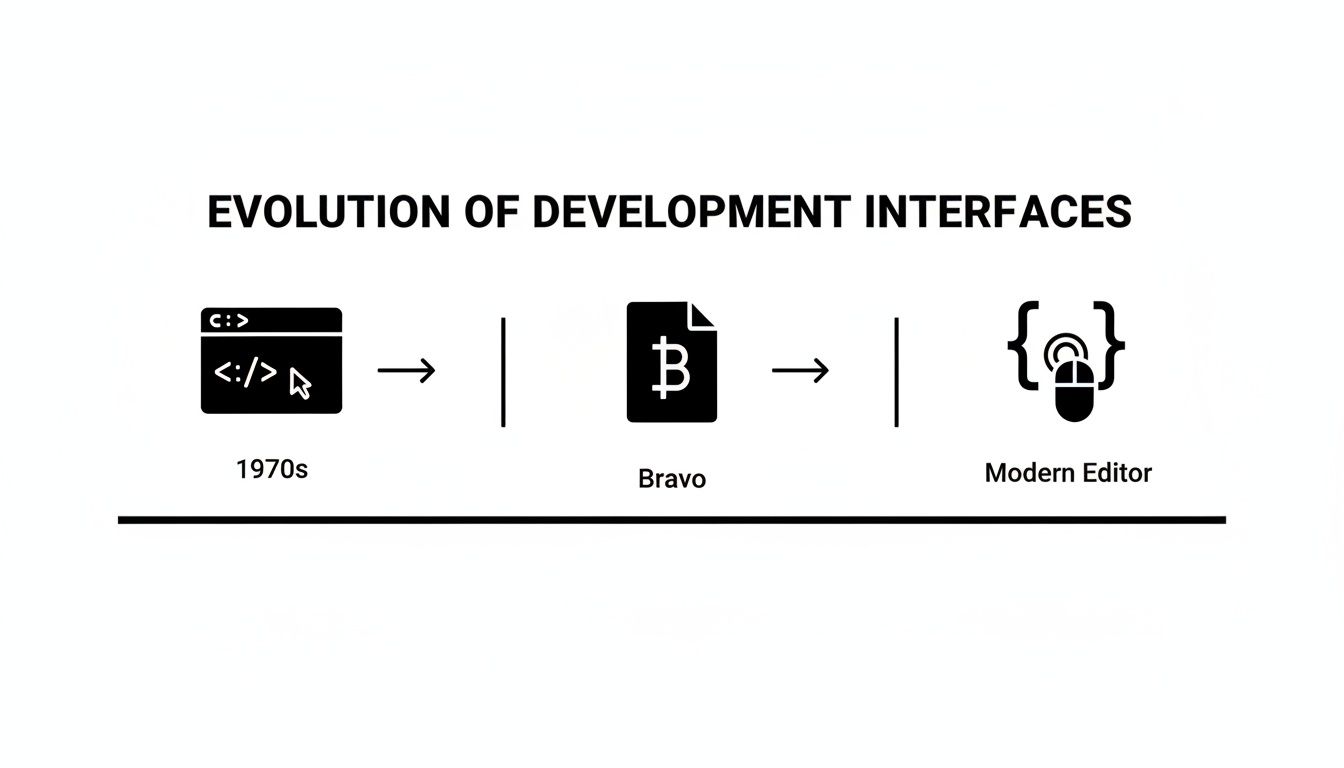
This evolution from the command line to the editors we have today has opened up web publishing for everyone, not just developers.
The Visual-First Approach: WYSIWYG
Think of a WYSIWYG editor as the most straightforward path from idea to published content. It’s the go-to for content marketers, small business owners, and anyone who prefers to see their changes happen in real time. The biggest advantage here is its zero-learning curve. If you can use a word processor like Google Docs, you're already set.
This visual-first method is fantastic for crafting beautiful, media-rich pages without touching a single line of code. You just click buttons to bold text, embed a video, or arrange columns, and the editor handles the rest. The trade-off? Sometimes, that convenience leads to messy, bloated HTML behind the scenes, which might be a minor headache if you need pixel-perfect, clean code.
The Writer-Focused Alternative: Markdown
Markdown editors hit that sweet spot between simplicity and control. They were built for writers who want to focus on the words without getting bogged down by formatting buttons. Instead of clicking around, you use simple syntax like **bold** or # Heading to structure your text.
This approach keeps your fingers on the keyboard and your mind in the writing zone. The output is consistently clean, semantic HTML that’s easy to move between different systems.
Many modern tools are now starting to blend the two worlds. You can see how this works by trying out an online Markdown WYSIWYG editor, which gives you a visual preview while you write in Markdown. It’s a great compromise, offering the speed of Markdown with the confidence of a visual interface.
The core difference isn't just about the interface; it's about philosophy. WYSIWYG prioritizes visual creation, Markdown prioritizes writing efficiency, and code editors prioritize absolute control.
The Developer's Playground: Source Code
For developers and technical pros, there's no substitute for getting your hands dirty with the source code. Working directly in HTML, CSS, and JavaScript gives you unlimited control and precision. You can build complex layouts, optimize for performance, and ensure every last detail is exactly right.
This is, without a doubt, the most powerful way to build for the web, but it demands a solid understanding of how it all works.
When you need to fine-tune that underlying structure for SEO or performance, a good HTML formatter and minifier becomes an essential part of the toolkit. Of course, writing everything by hand is the slowest and most technical route, making it a poor fit for most marketing and content teams who need to publish quickly.
To put it all together, here’s a quick comparison of how these three editor types stack up.
Editor Comparison: WYSIWYG vs. Markdown vs. Source Code
| Attribute | WYSIWYG Editor | Markdown Editor | Source Code Editor |
|---|---|---|---|
| User Interface | Visual, with toolbars and buttons | Plain text with simple syntax | Raw code in a text editor |
| Learning Curve | Very low; intuitive for beginners | Low; requires learning basic syntax | Very high; requires coding knowledge |
| Best For | Marketers, bloggers, non-technical users | Writers, developers, content creators | Developers, web designers, technical SEOs |
| Speed | Fast for visual layout, slow for text | Very fast for writing and formatting text | Slow for content, fast for structural changes |
| Control | Limited to the editor's features | Good control over structure and output | Absolute, pixel-perfect control |
| Code Quality | Can be bloated or inconsistent | Clean, semantic, and predictable | As clean as the developer writes it |
Ultimately, there's no single "best" editor—only the one that best supports your specific process and project demands.
The Pros and Cons of Visual Editing
While a WYSIWYG editor gives you a wonderfully direct way to build content, it's not a magic wand. There are always trade-offs that come with this kind of convenience. Like any tool in your toolbox, it’s perfect for some jobs and not quite right for others. Figuring out that balance is the key to picking the right workflow for you.
The biggest win is, without a doubt, accessibility. These editors tear down the technical walls, letting just about anyone create and publish professional-looking content without ever touching a line of HTML or CSS. This is huge for marketing teams, writers, and small business owners who just need to get things done quickly and on their own. The instant visual feedback loop also makes the creative process so much faster—you can try out a new layout and see exactly how it looks on the spot.
The Advantages of a Visual Workflow
But the benefits are more than just "it's easy." A good visual editor brings some serious advantages to your content creation process.
- Speed and Efficiency: When you're building a visually rich page, nothing beats a WYSIWYG editor. You can drag and drop columns, add buttons, and embed videos in a few minutes. Trying to code that all by hand would take significantly longer.
- Fewer Human Errors: Since the editor is generating the code behind the scenes, you’re far less likely to make a small syntax mistake. No more hunting for a forgotten closing tag that just broke your entire page.
- Great for Collaboration: It acts as a bridge between technical and non-technical team members. A marketer can mock up a new landing page visually, and a developer can pop in later to tweak the underlying code for performance or custom features.
The core idea is simple: it lets you focus on what you're creating—the message, the design—instead of getting bogged down in the how of writing perfect code.
Potential Downsides to Consider
Of course, that layer of abstraction between you and the code can create its own set of problems. The most common complaint is that some editors produce bloated or non-semantic HTML. This "messy" code can be harder for search engines to crawl effectively and sometimes leads to weird visual glitches across different web browsers.
You’re also pretty much stuck with the tools and features the editor gives you in its toolbar. Need a completely custom component or a unique animation? You might hit a creative wall. Many editors let you switch to a "source" view to edit the HTML directly, but that kind of defeats the whole purpose of using a simple visual tool. These limitations are the price you pay for the incredible simplicity they offer.
Common Questions About WYSIWYG Editors
As you start to wrap your head around WYSIWYG editors, a few questions tend to pop up again and again. Let's tackle them head-on to clear up any confusion and show you where these tools really shine.
Are WYSIWYG Editors Bad for SEO?
This is a classic concern, and thankfully, the answer is no—not anymore. It's true that old-school visual editors had a nasty habit of spitting out messy, bloated HTML that could make search engine crawlers stumble.
Modern editors, however, are a different breed. A good one will generate clean, semantic code that actually helps your SEO. The trick is to spot-check the source code now and then. Make sure your headings (H1, H2, etc.) are in a logical order and that key elements are tagged properly. A well-designed editor makes this kind of good structure second nature.
Can I Still Edit the HTML Code?
Absolutely. This is a non-negotiable for anyone who needs real control. Almost any professional WYSIWYG editor has a "Source" or "Code View" button, giving you a powerful hybrid workflow.
You can rough out the main structure of a page visually, which saves a ton of time. Then, you can flip over to the HTML view to fine-tune things, add custom attributes like aria-labels for better accessibility, or fix a weird formatting bug right at the source.
Think of it like a workshop. You use the power tools for the heavy lifting, but you always have your hand tools ready for the detailed, precision work.
Is Microsoft Word a WYSIWYG Editor?
Yes, it's probably the most common example out there, just for print instead of the web. When you bold text, drop in a table, or move an image around in Microsoft Word, what you see on the screen is exactly what you'll get on the printed page.
Web-based editors operate on the exact same principle. They just apply that immediate, visual feedback to creating content for websites and apps.
What Are Some Popular Examples?
Chances are you've used a WYSIWYG editor dozens of times without even thinking about it. They’re baked into so many of the tools we use daily:
- The classic editor in WordPress
- The email composer in Gmail or Mailchimp
- The page builders in platforms like Squarespace and Wix
For developers who need to embed an editor into their own projects, tools like TinyMCE and CKEditor are the go-to solutions that power countless web applications behind the scenes.
Ready to bring visual editing to your static site? JekyllPad combines a powerful WYSIWYG and Markdown editor with seamless GitHub integration, making content management for Jekyll, Hugo, and other static sites effortless. Start creating for free on JekyllPad.